Tasks & Events
Tasks & Events is a feature that lets you execute any application or process at a given time using the schedule settings.
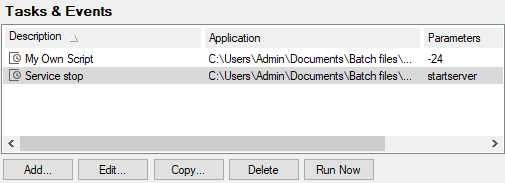
Figure. Tools management: Task & Events tab.
|
Button |
Description |
|---|---|
|
Add |
Click the button to add a new task/event. The Task/Event dialog opens. |
|
Edit |
Select a task (event respectively) and click the button to edit this task. The Task/Event dialog opens. See lower. |
|
Copy |
Select a task (event respectively) and click the button to copy this task. The Task/Event dialog opens. See lower. Useful if you want to create a similar task/event. |
|
Delete |
Select a task (event respectively) and click the button to remove this task. |
|
Run Now |
Select a task (event respectively) and click the button to run this task immediately. |
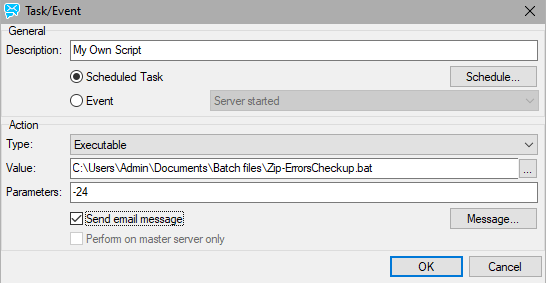
Figure. Task/Event dialog.
|
Field |
Description |
|---|---|
|
Description |
Simple description of the task or event item which is then shown in the Tasks & Events list. |
|
Scheduled Task |
Choose this option to make this item a scheduled task. Use the Schedule button to define a schedule for this item. |
|
Schedule |
Pressing this button allows you define a schedule for this item. (Use the Add button + Schedule Task dialog.) |
|
Event |
Choose this option to run this item when the selected trigger event happens. There are three trigger events you can chose from: Server started Run this item when the Control service starts. Server stopped Run this item when the Control service stops. Settings changed Run this item when settings are changed. |
|
Type |
Specify the interface to be used to run this item: Executable is used for a DOS executable. StdCall and Cdecl are library interface specifications when you are calling a DLL file. In the case one of these types is specified, the MerakFilterProc2 (MerakFilterProc respectively) procedure is called with empty parameters. URL should be specified for a remote executable script. |
|
Value |
Specify the full path or URL to the executable. |
|
Parameters |
Specify any parameters that should be passed to the executable. |
|
Send email message |
Check this option to send an email when this item is triggered. Use the Message button to specify the email details. |
|
Perform on master server only |
If load balancing is set (System Storage Load Balancing), Check this box, if you want to have the task/event executed only on the master server. |
|
Message |
Click this button to open the Message dialog which allows you to configure the details of the email to be sent. |
Tip: It can be advantageous to call php.exe (executable) to run scheduled tasks that execute html/php files instead of using the URL function.
Note: The benefits of using php.exe instead of URL: When you run script via URL it will occupy a PHP slot and moreover there is a time limit for maximal script execution duration. Running it using php.exe, you can specify another timeout, memory limits, etc.

